AI Upscale
AI image upscaling for sharp prints
AI Upscale enlarges low-resolution artwork with AI before printing, so your products come out sharp instead of blurry. Most AI-generated art, and plenty of other artwork, is smaller than the print. A standard resize just stretches it, and the print turns out soft or pixelated. AI Upscale is built into Dreamship, so there's no separate tool and nothing to re-upload.
$0.20 per upscaled print area, charged once
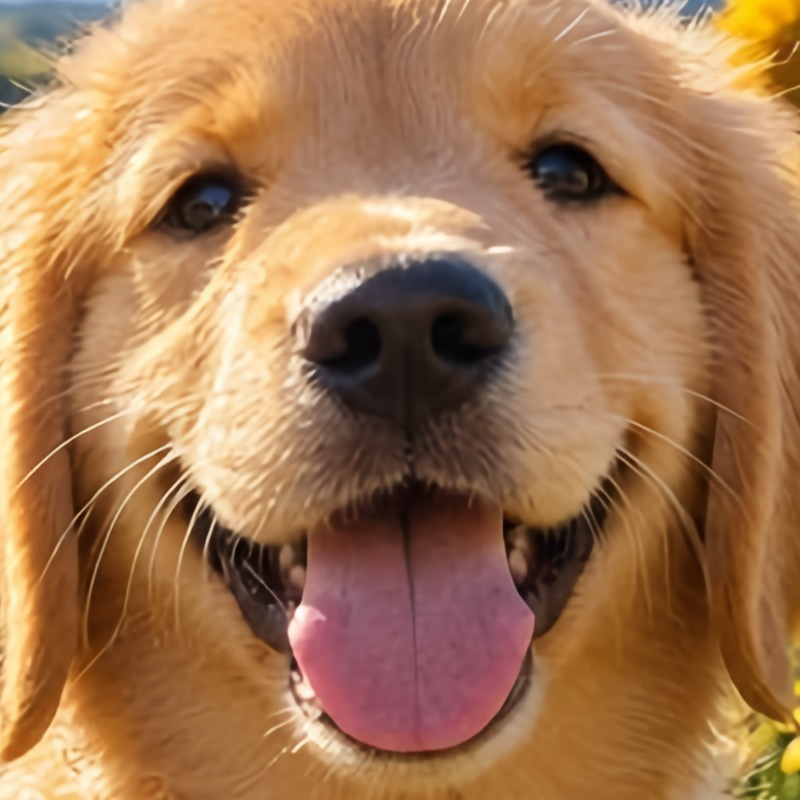
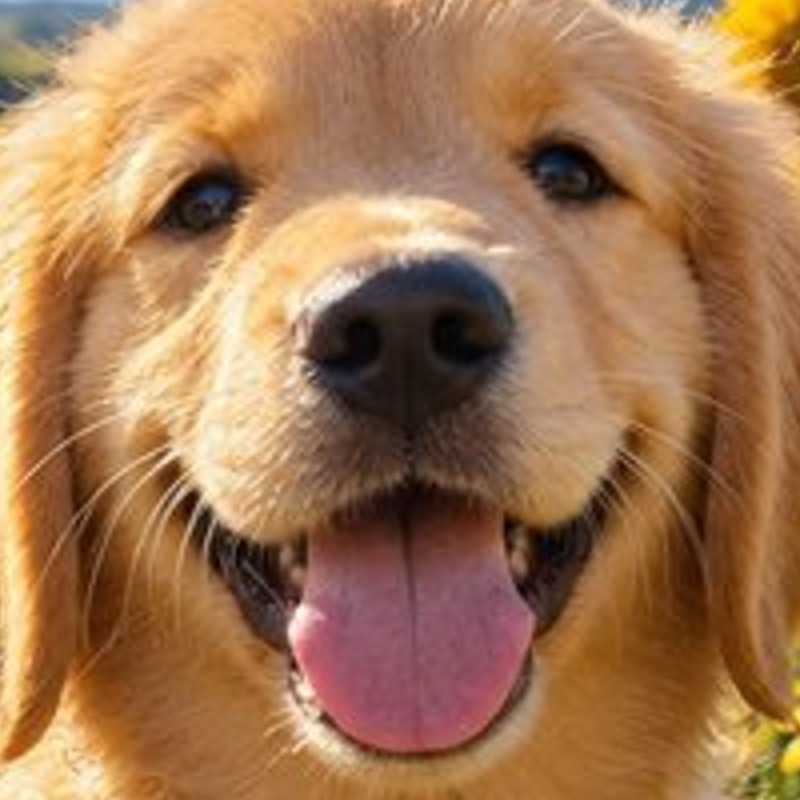
 A 750 pixel photo of a golden retriever puppy, enlarged 4 times. Drag to compare a standard resize with AI Upscale.
Made your art with AI?
Most AI art is too small to print sharp
AI image generators like ChatGPT and Midjourney usually make images about 1,000 to 1,500 pixels wide. That looks great on a screen. At 300 DPI, though, it covers only 3 to 5 inches. Stretch it across a t-shirt and it prints soft. That's why AI art almost always needs upscaling for print.
- How wide this design is, typical for AI art
- 1,254 px
- Printed 12 inches wide on a t-shirt
- 105 DPI
- With AI Upscale, enlarged about 2.9 times
- 300 DPI
When to use AI Upscale
Use AI Upscale when your artwork has fewer pixels than the print needs. In the Designer, the DPI indicator above the artboard turns red, and an AI Upscale button appears next to it. Dreamship recommends 300 DPI for most products. Small artwork usually falls short when Fill or Fit stretches it across a big print area.
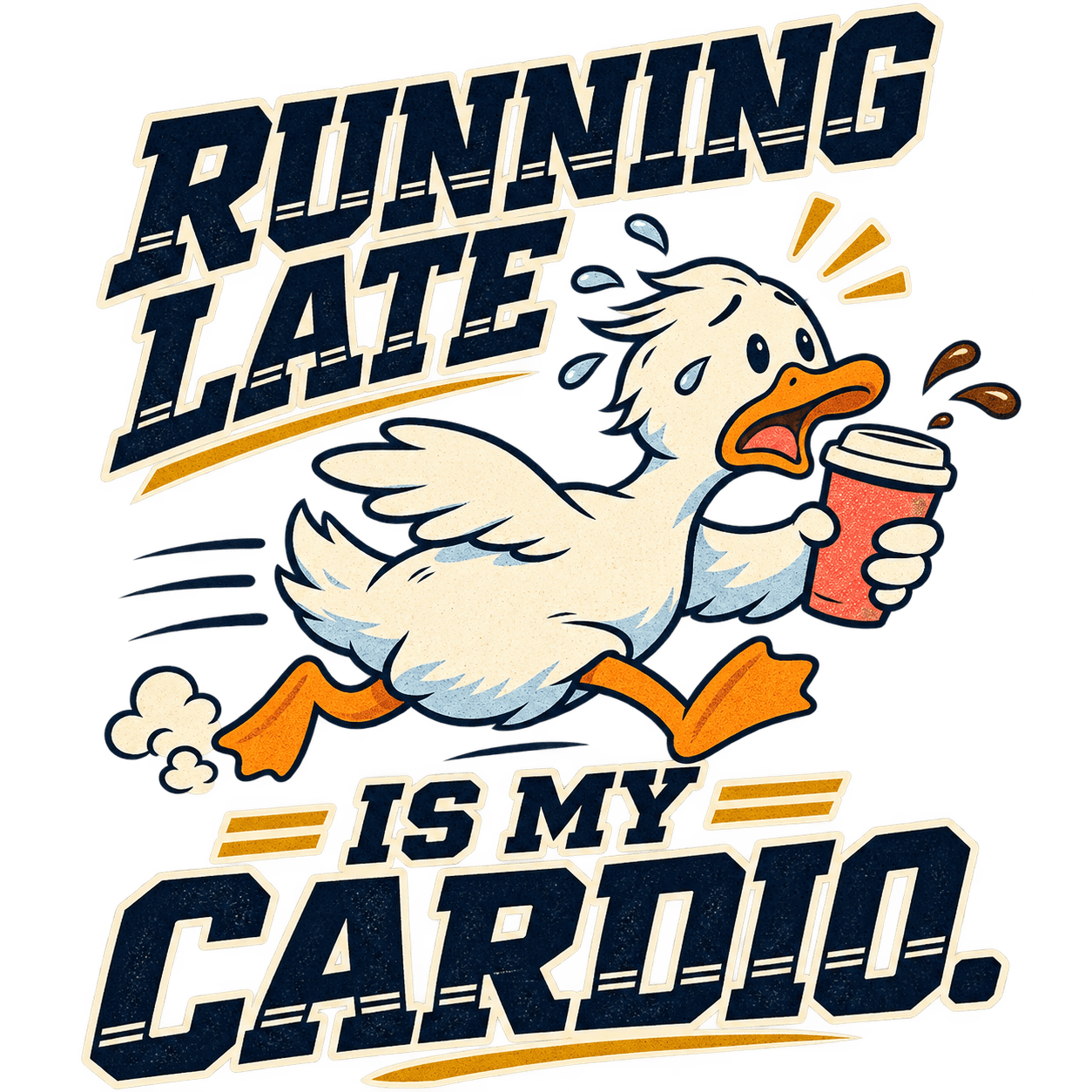
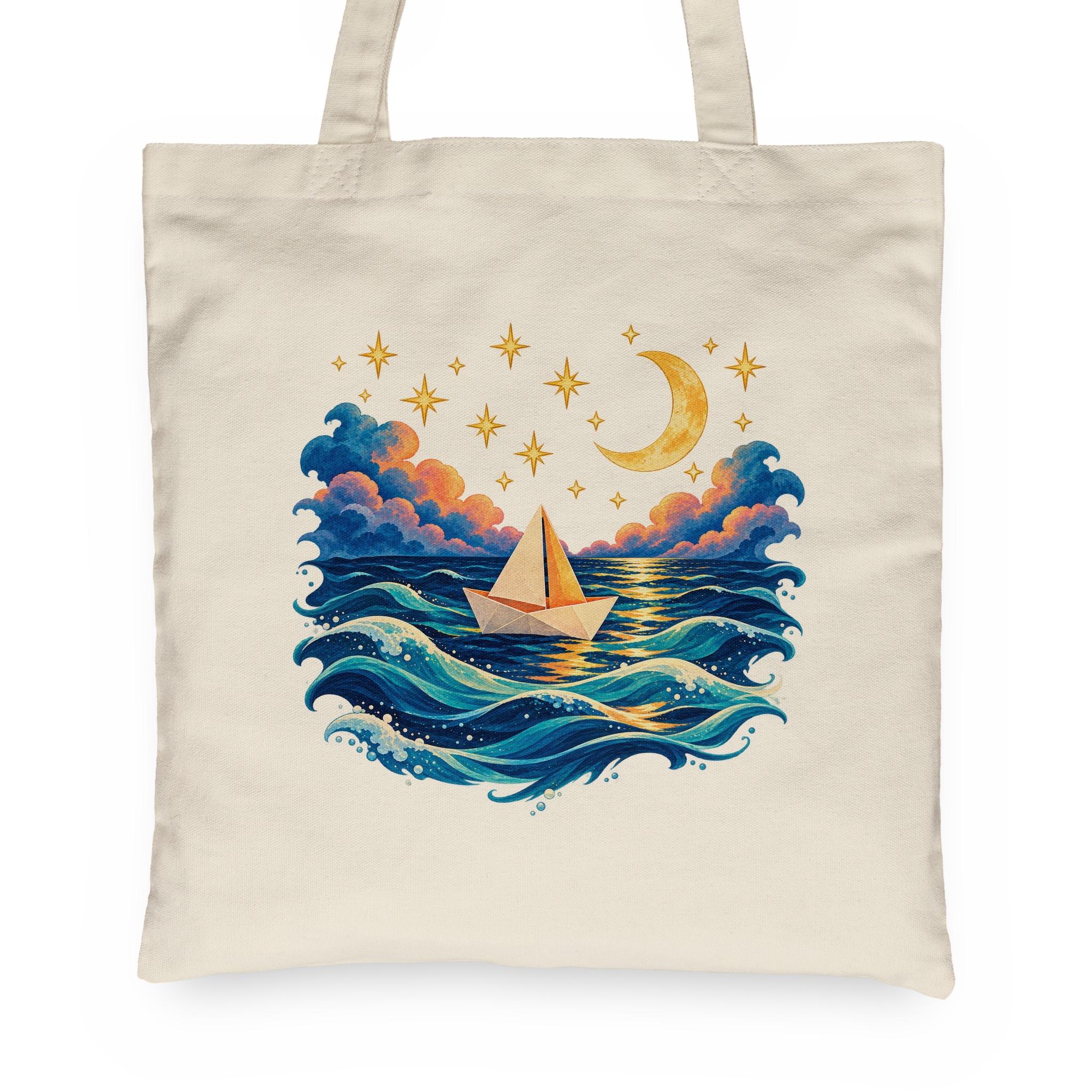
This canvas tote is one. The paper boat design is 1,254 pixels wide, so across the tote's 10 inch print area it would print at 125 DPI. With AI Upscale on, Dreamship enlarges the boat to the full print size before printing.
AI Upscale works with every resize option. The upscale happens after the order is paid, so your artwork in the Designer doesn't change.
Turn on AI Upscale wherever you make products
However your orders reach Dreamship, AI Upscale is one switch away.
On your products
Click AI Upscale next to the DPI indicator in the Designer, then save. For products you already have, tick AI upscale on the product page, or select several in All Products and choose Turn on AI upscale.
On an order you create
When artwork is too small, an AI upscale ($0.20) checkbox appears next to the print area. Tick it before you submit.
In a CSV upload
Set ai_upscale_1 to TRUE for the first print area, ai_upscale_2 for the second, and so on.
Through the API
Send ai_upscale: true with a print area when you create or update a product, or create an order.
Read the API docsFrom your AI assistant
The Dreamship connector asks whether to turn on AI Upscale when your artwork is too small for the print.
See the connector
$0.20 per upscaled print area
Turning on AI Upscale costs nothing. The fee is added to the first order that needs the upscale.
- Only when needed
- If your artwork already has enough pixels for the print size, Dreamship doesn't upscale it and you aren't charged.
- Once per artwork
- Later orders that print the same artwork at the same size reuse the upscaled file for free. CSV and API orders that send an artwork URL bring a new file each time, so each one pays for its own upscale.
- On the invoice
- The fee shows on the order invoice as AI Upscale Fee.
AI Upscale FAQ
Is AI-generated art good enough to print?
Usually not at full size. Most AI images are about 1,000 to 1,500 pixels wide, enough for 3 to 5 inches at 300 DPI. Turn on AI Upscale and Dreamship enlarges the art with AI to the print size, so it prints sharp.
Can I just change my file's DPI to 300?
No. Dreamship measures DPI from your artwork's pixels and the size it prints at, so the DPI setting saved in the file changes nothing. At 300 DPI, a design printed 12 inches wide needs 3,600 pixels across. AI Upscale adds the missing pixels.
Am I charged if my artwork is already sharp?
No. Dreamship only upscales, and only charges, when your artwork would be stretched past its own pixels at the print size.
Do I pay again when I reorder?
Not for the same artwork. Later orders that print the same artwork at the same size reuse the upscaled file at no charge. CSV and API orders that send an artwork URL bring a new file each time, so each of those orders pays for its own upscale.
Why does my artwork look the same in the Designer?
AI Upscale runs on the print file after the order is paid, so the Designer keeps showing your original. Once the order is accepted, open it and click Files under the print area. Artwork is your original, and Print File Proof is the upscaled file that will be printed.
How much can AI Upscale enlarge my artwork?
Up to 4 times in each direction, and up to 60 megapixels in total. Past that, Dreamship finishes with a standard resize, so start from the largest file you have.
Does AI Upscale keep transparent backgrounds?
Yes. AI Upscale returns a PNG, so a transparent background stays transparent instead of turning white.
Which resize options does AI Upscale work with?
AI Upscale works with every resize option, including Fill and Fit.
Does it work with personalized products?
Yes. AI Personalization turns on AI Upscale by itself for the art it generates, at the usual $0.20 per upscaled print area. With Manual Personalization, tick AI upscale on each order when you add its artwork.
Print every design sharp
Create a free account, add your artwork in the Designer, and click AI Upscale whenever the DPI indicator turns red.